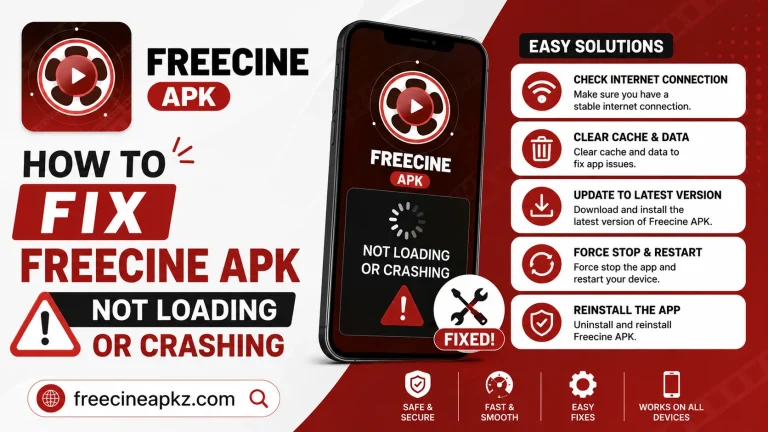
Freecine APK Not Working? Common Problems and Easy Fixes
Introduction
Few things are more frustrating than an app that refuses to work when you have set aside time to watch something. Freecine APK is generally stable, but like any third-party app that pulls from a wide range of sources, it can hit snags. The good news is that most of those snags fall into a handful of well-known categories, and the fixes for each are simple enough that you do not need to be technical to apply them.
This guide walks through the most common reasons Freecine APK stops working and the exact steps to get it back on track. We will cover everything from “the app will not open” to “the app opens, but nothing will play.” Each section follows the same pattern: what is going on, why it happens, and the cleanest fix. Read from top to bottom for a complete troubleshooting flow, or jump to the section that matches your symptom.

The App Will Not Open at All
If you tap the Freecine icon and nothing happens, the issue is almost always local to the app, not the network. The first thing to check is the install itself. A common cause is a partially completed install, often the result of an interrupted download. Open Settings, then Apps, find Freecine, and look at the size. If the size is much smaller than the file you downloaded, the install is incomplete. Reinstall from freecineapkz.com.
The second common cause is a corrupted cache. The cache is a small local store of temporary files that the app uses to speed up startup. Over time, it can grow or become corrupted. Clear the cache from the same Apps menu, then relaunch the app. This fixes a surprising number of “will not open” issues.
If neither of those works, check the storage on your device. Android may refuse to launch an app if free space drops below a few hundred megabytes. Free up space and try again.
The App Opens But Crashes Immediately
A crash on launch, with the app closing itself within a second or two, usually points to a missing system component or a permission that was denied. On Android, open Settings, then Apps, then Freecine, then Permissions, and make sure storage and network access are both enabled. Denying either can cause an instant crash.
On iOS sideloaded installs, crashes on launch are most often tied to certificate trust. Go to Settings, then General, then VPN and Device Management, and confirm that the developer profile is still trusted. iOS revokes trust on free Apple IDs after seven days, and an untrusted profile will not run.
On a PC emulator, crashes on launch are usually a graphics driver issue. Update the GPU driver on the host machine, then update the emulator itself. The combination of an updated driver and a current emulator version resolves most PC-side launch crashes.
The App Opens But Nothing Will Play
This is the most reported category of issues, and it has the most potential causes. Start with the simplest one. Check your internet connection. Open a browser, load any page, and confirm that the network is working. If the browser is also slow or stuck, the problem is the network, not the app. Restart the router if needed.
If the network is fine, the next suspect is the source. Freecine pulls from many sources, and any one of them can go offline temporarily. Try a few different titles. If some play and others do not, the issue is the specific source, not your setup. Wait an hour or two, or try a different source from inside the app’s player menu.
If nothing plays at all, clear the app’s cache, restart the device, and try again. The cache holds connection tokens and small data files that can go stale. A clean restart forces them to refresh.
Video Buffers Constantly or Loads Slowly
Buffering has two main causes: a slow network or a misconfigured player. The fix depends on which one it is.
For network-related buffering:
- Switch from Wi-Fi to mobile data, or vice versa, to identify the slow path.
- Move closer to your Wi-Fi router.
- Disconnect other devices from the network. A household full of streaming devices can easily saturate a residential connection.
- Lower the in-app video quality. Many titles play smoothly at 720p even when 1080p struggles.
For player-related buffering:
- Switch from the internal player to the external player, or the other way around. The two players use different network paths and codec handling.
- Increase the buffer size in the player settings. A larger buffer smooths out network hiccups at the cost of a few extra seconds of initial loading.
- Enable hardware acceleration if your device supports it. This offloads decoding to the GPU and often makes a noticeable difference.
Subtitles Will Not Load or Display
Subtitle issues fall into three buckets. The first is a missing font. Some custom subtitle files need a specific font that the device does not have. The fix is to install a universal font pack from your device’s app store, or to switch to a built-in subtitle track inside the app.
The second is wrong encoding. Subtitles saved in older encodings can display as garbled text. The fix is to change the subtitle encoding in the player settings to UTF-8, which handles almost all modern subtitle files.
The third is timing mismatch. If subtitles appear too early or too late, the file is offset against the video. Most players have a “subtitle delay” slider that lets you shift the timing in 0.1 second increments. Adjust it until the dialogue lines up with the speech.
Login or Profile Will Not Save
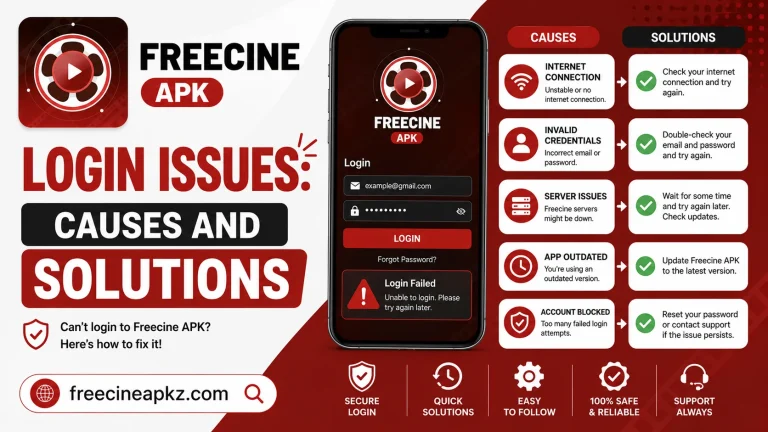
Some users prefer to sign in inside the app to sync their watchlist across devices. When the profile will not save, the cause is usually local data corruption. Go to the app settings, find the account or profile section, sign out, and sign back in. This forces a fresh write of the profile data.
If that does not work, clear the app’s data entirely from the system settings menu. This is a heavier reset than clearing the cache, and it will require you to sign in again and reconfigure preferences, but it resolves stubborn profile issues that the lighter fixes miss.
Sound But No Picture, or Picture But No Sound
This is a codec mismatch issue. The app supports a wide range of audio and video codecs, but some titles use combinations that the default player on your device cannot handle. Switching to the external player usually solves it, because external players bundle their own codec libraries.
If the problem persists, try a different title. If other titles play with both audio and video, the issue is specific to the source file, and waiting for an updated source or a new build of the app is the right move.
The App Disappeared From the Home Screen
On Android, this can happen after a system update resets some app permissions. Open Settings, then Apps, then Freecine, and check whether the app is disabled. If it is, enable it and the icon returns. If it is not in the app list at all, the install was wiped by the system update, and a fresh install from freecineapkz.com is the fix.
On iOS, the disappearance almost always means the developer certificate trust has expired. Re-trust the certificate from the VPN and Device Management menu, and the icon reappears without a reinstall.
Quick Reference: Common Issues and Fixes
| Symptom | Most Likely Cause | First Fix to Try |
|---|---|---|
| App will not open | Corrupted install or cache | Reinstall from freecineapkz.com |
| App crashes on launch | Denied permission or untrusted certificate | Check permissions and certificate trust |
| Nothing will play | Network issue or stale source | Test network, try different titles |
| Constant buffering | Slow network or wrong player | Switch player, lower quality |
| Subtitles broken | Encoding or font issue | Switch encoding to UTF-8 |
| Login will not save | Corrupted local data | Sign out and back in |
| App icon missing | Disabled app or expired trust | Re-enable or re-trust certificate |
Frequently Asked Questions (FAQs)
Why does Freecine keep crashing on my phone?
The most common causes are a corrupted cache, a denied permission, or an outdated version. Clear the cache, check permissions, and reinstall the latest build from freecineapkz.com.
How do I fix buffering on a fast network?
Buffering on a fast network is usually a player or source issue. Switch to the external player and try a different title to confirm.
Can I use Freecine on two devices at the same time?
Yes. The app supports multiple installs on different devices, and there is no device limit on the free version.
Will clearing data delete my downloads?
Yes. Cleared data removes offline downloads along with preferences. Back up anything you want to keep before clearing.
Where do I report a bug that the fixes above do not solve?
The developer publishes update notes and known issues on freecineapkz.com, and there is a community section where users share fixes for less common problems.
Conclusion
Most Freecine APK issues come down to a handful of recurring causes: a corrupted install, a stale cache, the wrong player, or a network that is not as fast as it should be. The fix for each is the same set of steps you just read through. The next time the app misbehaves, run through the quick reference table first, walk down the matching section, and you will be back to watching in minutes. For stubborn issues that the standard fixes do not touch, a clean reinstall of the latest build from freecineapkz.com is the reliable reset.